EasyPill Frequently Asked Questions (FAQs)
Below you will find answers to common questions about EasyPill features and settings.
Getting started
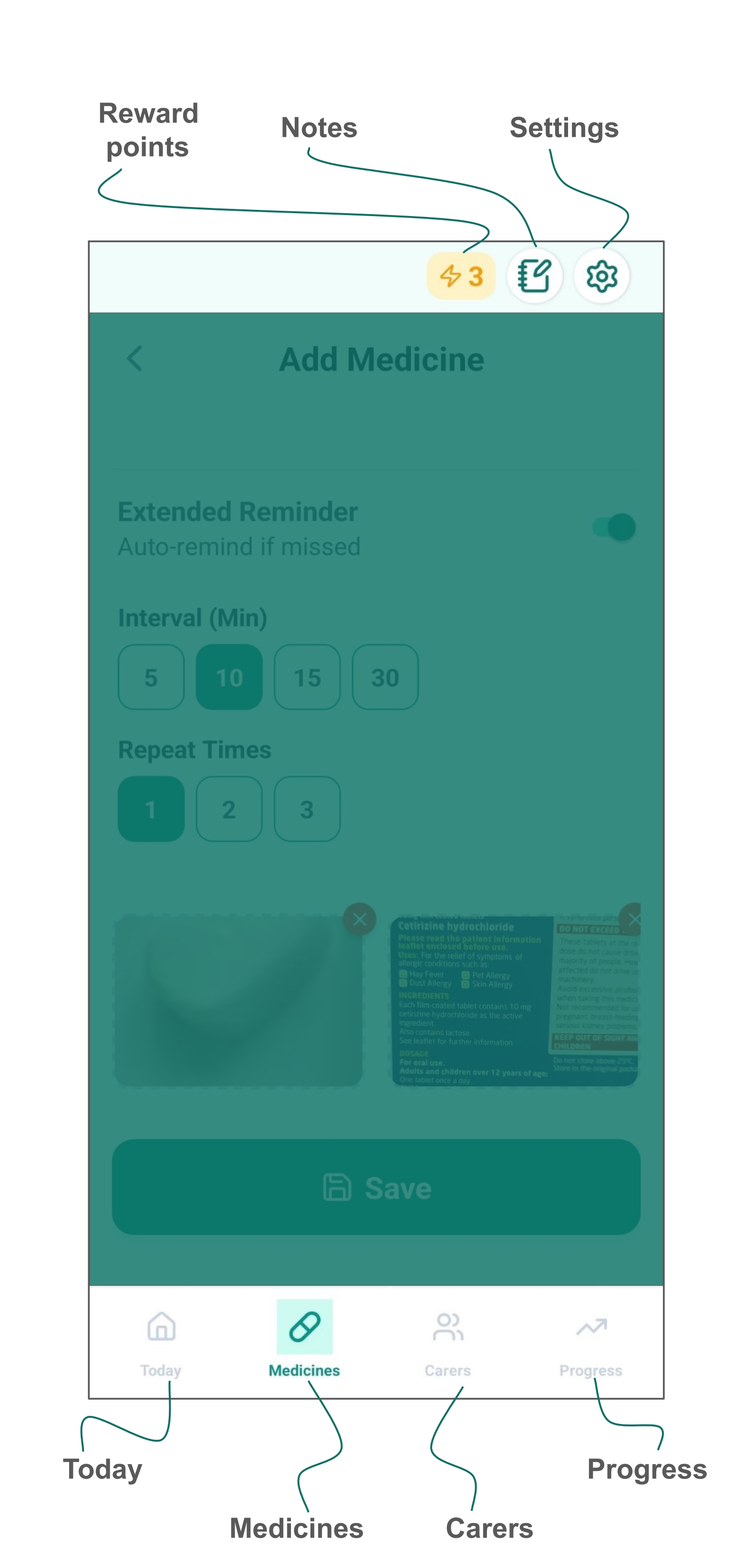
Top right corner buttons:
- Reward Points: Show current reward point left. Reward point will be used for
advanced features AI backed OCR.
- Notes: Listing and Add/Edit Notes. There are 2 categories of notes, symptoms or
health readings.
- Settings: Settings of the applications, like ringtone and default Notes (to the
ease your input and filtering).
Navigation buttons (bottom):
- Today: Shows scheduled Medicine of the day and future days. Mark the medicine as
taken or snooze.
- Medicines: Add / Edit medicines and their schedule.
- Carers: Authorized Carers and related functions.
- Progress: Medication Adherence rate, health readings and reports.
↑ Back to top
Notifications Related
1. Why are my notifications delayed?
Android prioritizes battery life and performance, which can sometimes delay apps running in the background.
Common reasons include:
- Doze Mode: An Android power-saving feature that limits background activity when your phone
is idle. It may group notifications into "maintenance windows," causing delays.
- Battery Optimization: Many apps are restricted by default to save power, limiting how often
they can "wake up" your device.
- Manufacturer Restrictions: Brands like Samsung, Xiaomi, and Huawei often add extra power
management layers that aggressively close background processes.
- Device Factors: Older devices, low battery, or "Force Closing" the app can also prevent
alerts from firing on time.
Note: These are system behaviors outside of EasyPill’s direct control, but they can usually be
fixed by adjusting your settings.
↑ Back to top
2. How do I check if my app is affected by battery optimization?
To fix this, you need to set EasyPill to "Unrestricted" or "Not Optimized."
- Stock Android (e.g., Pixel): Go to Settings > Apps > EasyPill > Battery
and select Unrestricted.
- Samsung: Go to Settings > Apps > EasyPill > Battery and select
Unrestricted.
- Xiaomi: Go to Settings > Battery & Performance > App battery saver >
EasyPill and select No restrictions.
↑ Back to top
3. What about manufacturer-specific settings?
Different brands have unique tools that may block notifications. Here are common fixes:
- Xiaomi/Redmi (MIUI): Enable Autostart in App settings. Lock the app in
your recent apps tray.
- Huawei/Honor: In Battery settings, find App Launch, select EasyPill, and
manage it manually (enable Auto-launch, Secondary launch, and Run in background).
- OnePlus: Go to Battery optimization and select Don't optimize for
EasyPill.
- Oppo/Vivo: Allow background activity in the App Info settings.
Tip: If these steps don't match your phone, search Google for "[Your Phone Model] allow
background apps."
↑ Back to top
4. Do I need to grant specific permissions?
Yes. For the best reliability, ensure the following:
- Notification Permissions: Allow sound, vibration, and lock screen visibility in your phone
settings.
- Alarms & Reminders (Android 12+): Allow this permission under App Info.
- Do Not Disturb: Ensure your phone isn't in a Focus Mode that silences alerts.
↑ Back to top
5. What if notifications still don't work?
- Don't Force-Close: Swipe-closing the app from your recent apps list can kill background
processes. Keep it running in the background.
- Update: Ensure both your Android OS and the EasyPill app are up to date.
- Contact Us: If issues persist, please contact support with your device model and Android
version so we can investigate further.
↑ Back to top
6. Are there limitations to scheduled notifications?
Android does not guarantee exact timing down to the second due to power-saving features. While we strive for
precision, slight delays can occur. Additionally, restarting your phone may require the app to be opened once to
reschedule your alerts.
↑ Back to top
OCR (Label Scanning) Related
1. Why does the OCR function have limited free usage?
Our OCR (Optical Character Recognition) feature relies on advanced third-party AI infrastructure, which incurs
costs for every scan. Therefore, the free version has a usage limit. You can unlock more scans by watching ads
or subscribing to our monthly service for unlimited, convenient access.
↑ Back to top
2. Is the OCR function multilingual?
Yes. The OCR scanner can read labels in all languages currently supported by EasyPill (check the Settings menu
for the list). However, please note that while it reads the text, it does not
translate the label into a different language.
↑ Back to top
3. Can I rely solely on the OCR output for medical information?
No. While our OCR is rigorously tested, factors like lighting, label damage, or font styles can affect accuracy.
Furthermore, a label may contain general info that doesn't apply to your specific dosage instructions.
- Always Verify: Carefully review the scanned text and edit it as needed before saving.
- Consult a Pro: If you are unsure about a medicine's instructions, always consult your
doctor or pharmacist. Do not rely solely on the app for critical medical decisions.
↑ Back to top